From the WeddyLens Plus package upwards, you can give your guests extended access to your album.
A guest with extended permissions can do more than a regular guest, for example download the whole album or see hidden content.
Step by step
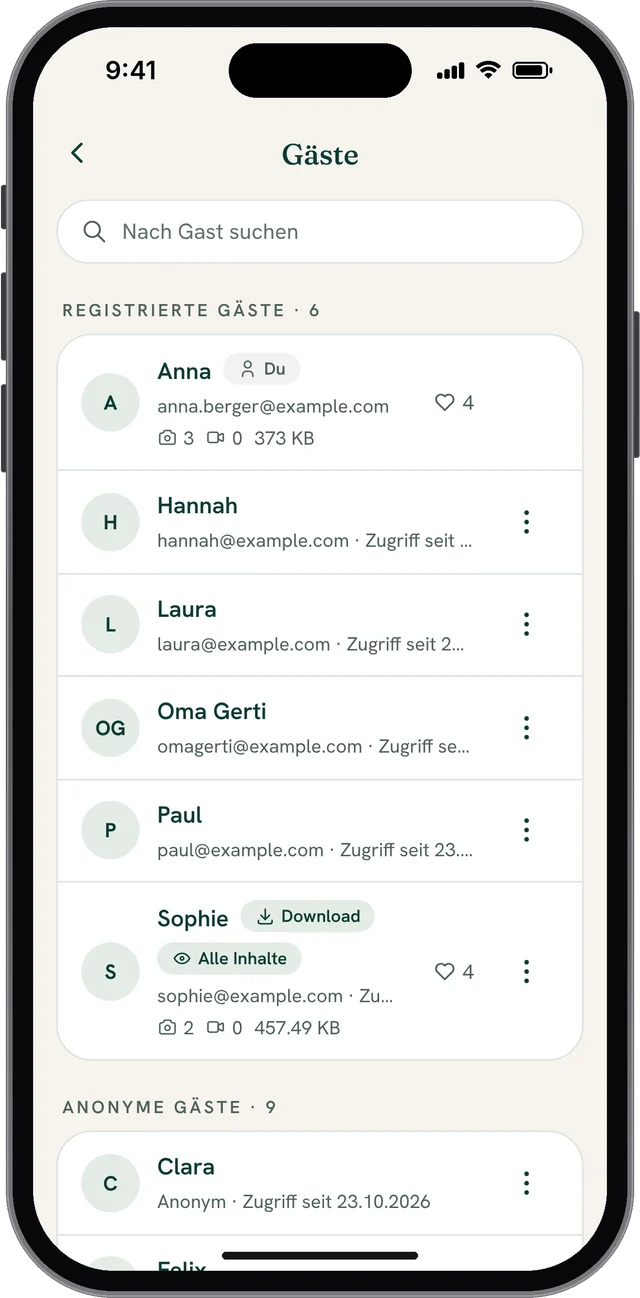
Open your album and go to the guest list.
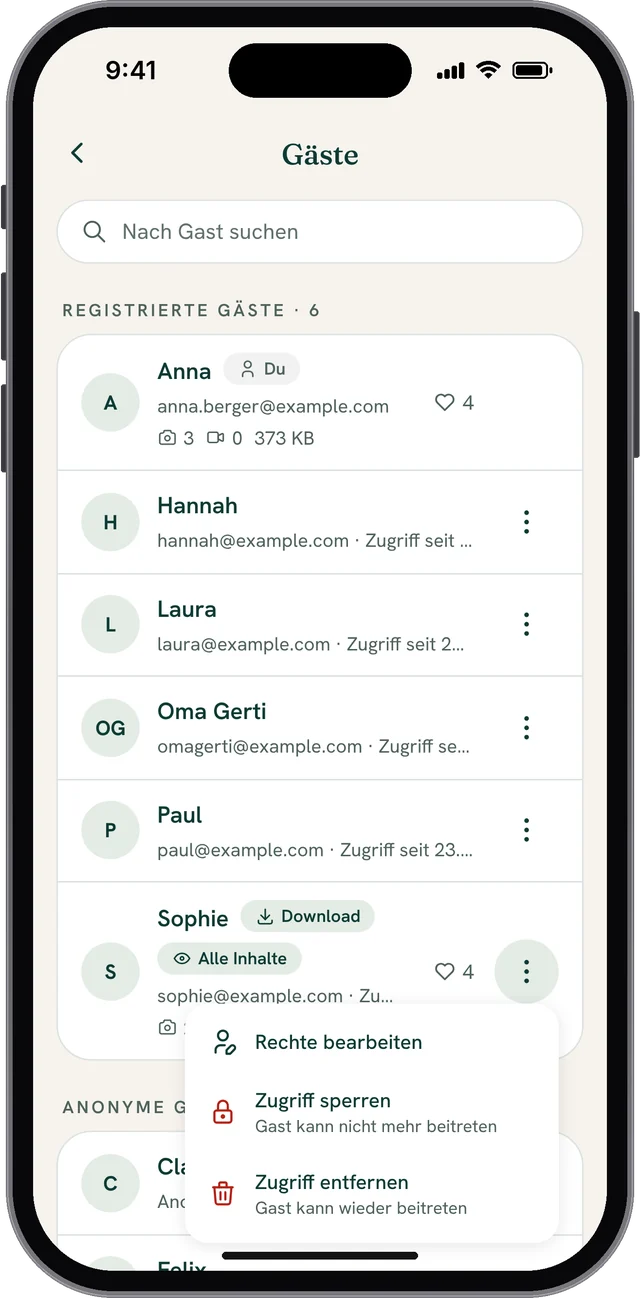
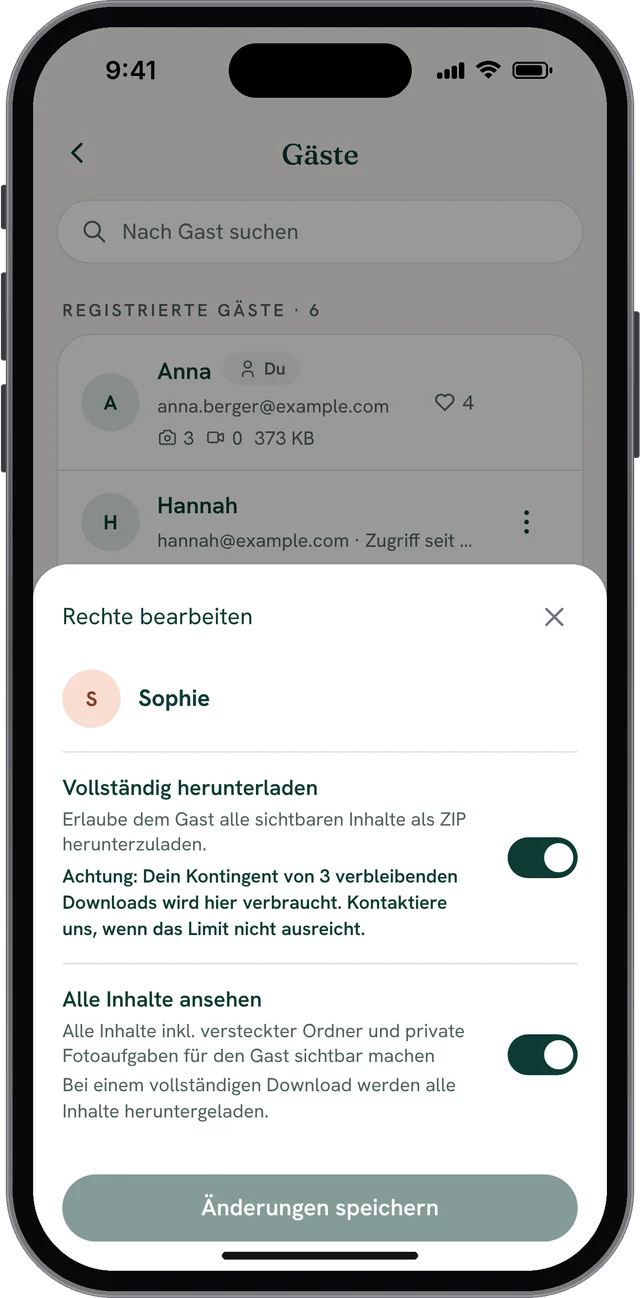
You’ll find it in your album’s dashboard on the Guests tile. Tap the three dots next to the guest you want to unlock extended features for and choose Edit permissions. You can recognise guests with extended permissions in the list by the small icons next to their name.
Full downloads
By default, guests can download individual photos or up to 20 selected photos.
With WeddyLens Plus, you can allow a guest to download all photos at once as a ZIP file. The ZIP file only contains the photos the guest has access to.
If the guest should be able to download all photos, regardless of folders or visibility, you also need to give them the View all content permission (see next section).
Important: Every full download made with this permission is deducted directly from your allowance of full downloads. So grant it with care.
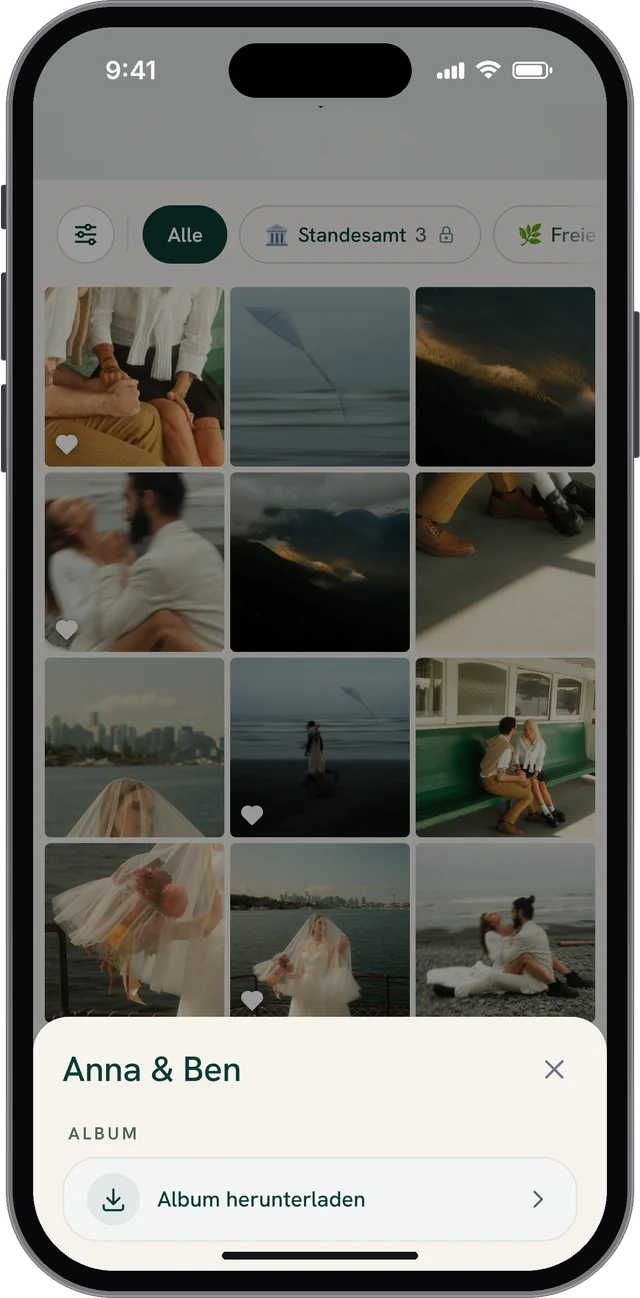
The guest finds the full download in the album via the three dots in the bar at the bottom:
Access to all content
As described in the article Managing several ceremonies in one WeddyLens album, you can split your album into several folders.
You can hide and lock these folders if needed.
For example, if you already used WeddyLens at a small get-together on the eve of the wedding and not all guests should see those photos, you can hide the folder in question.
However, the folder is then invisible to all guests.
With the View all content permission, you can still give specific guests access to the hidden content.
At the moment, you can’t assign permissions for individual folders in WeddyLens.