In the album settings, you decide who may join your album and what your guests can do there. This lets you tailor the album to your celebration.
Here we go through the settings one by one.
You’ll find them in your album’s dashboard via the cog icon at the top right.
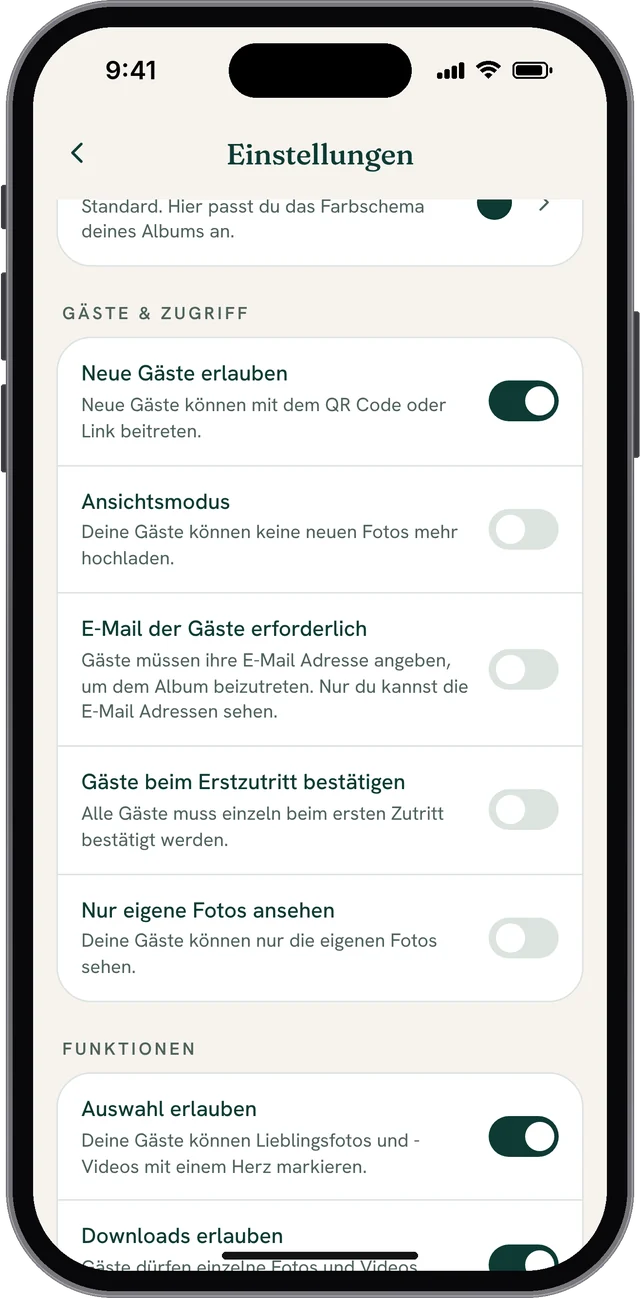
Allow new guests
With this setting, you can close the album to new guests.
This is a good idea after the celebration, for example.
Guests who have already joined can still access the album.
View-only mode
In view-only mode, guests can’t upload any new content.
Require guests’ email
When new guests join the album, they are only asked for their name by default. When joining, guests can also enter an email address. They can then access the album later on another device too.
This setting makes entering an email address mandatory. This is useful if you want to collect your guests’ email addresses (e.g. for thank-you emails).
Approve guests on first visit
If this setting is active, you have to approve every guest who wants to enter your album first.
On the wedding day itself, this can be impractical. But you can also switch the setting on later.
Note: When you activate this setting, Require guests’ email is switched on automatically as well.
At the very bottom of the guest list, you can see when someone wants to join. Tap the tick to let the guest in, or the bin to decline:
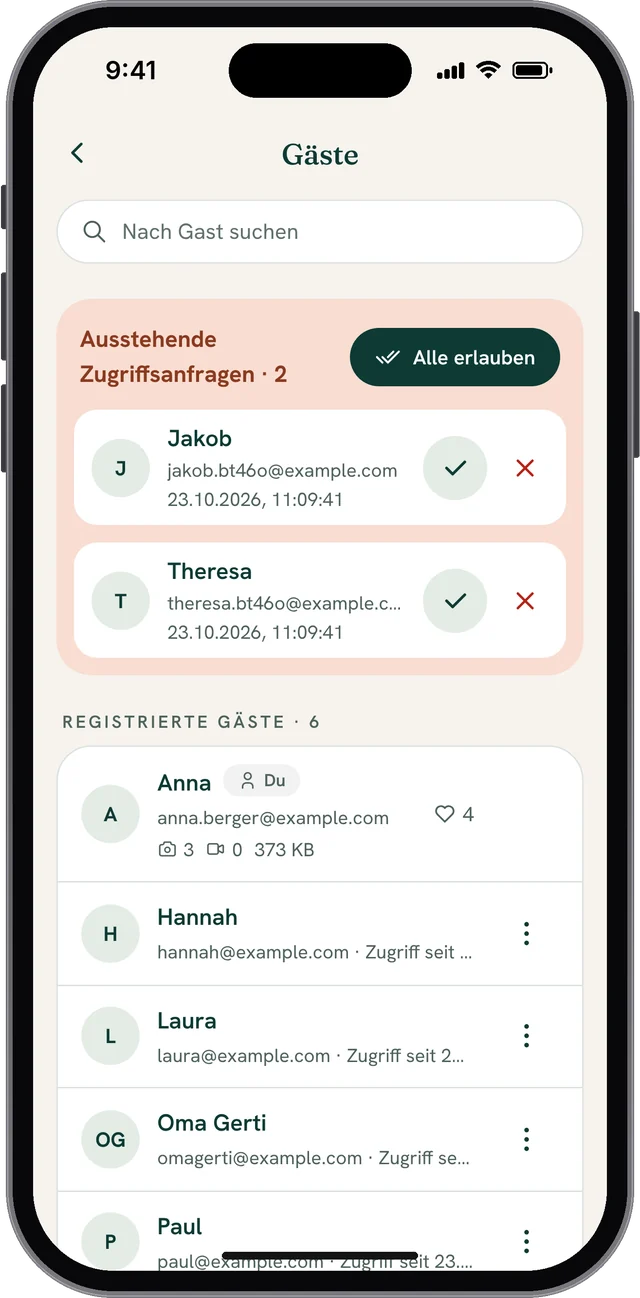
You will also receive an email when someone wants to join. The guest is notified as well as soon as you have granted them access.
Only see own photos
If you activate this setting, guests only see the photos they have uploaded themselves.
As the administrator, you always see all content. If you have bought WeddyLens Plus or Premium, you can still give selected guests access to all content. You can find out how in this article.
Allow favourites
By default, guests can mark photos they like with a heart. The heart can be found in the full-screen view of a photo.
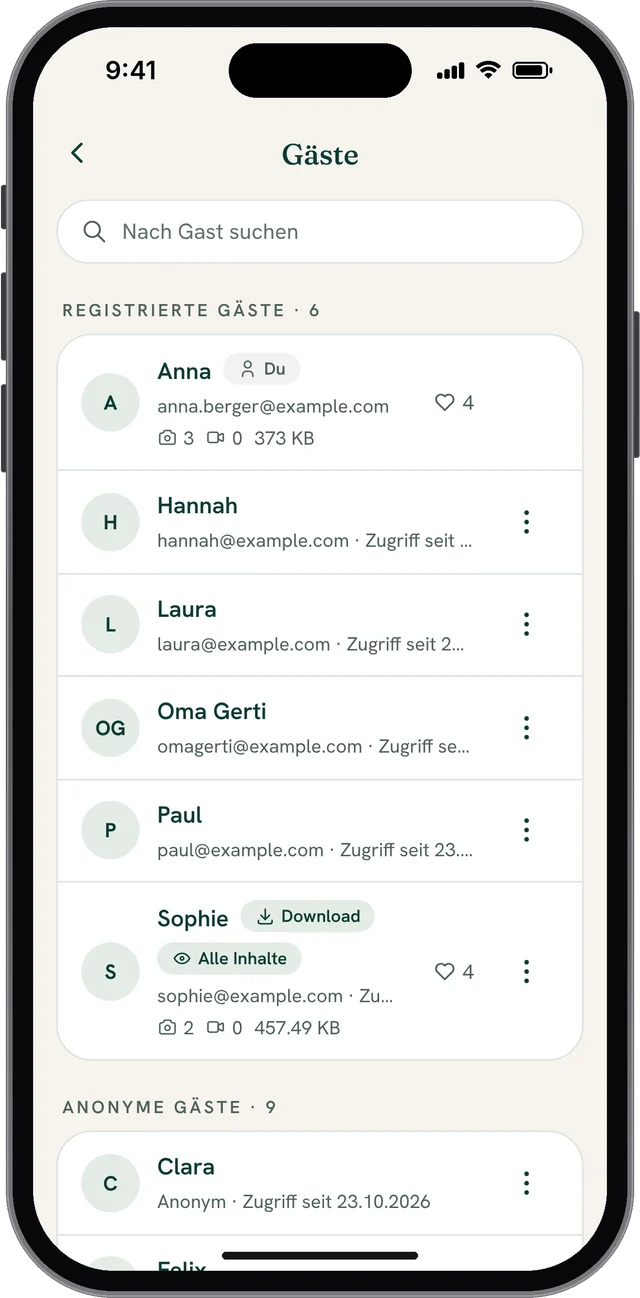
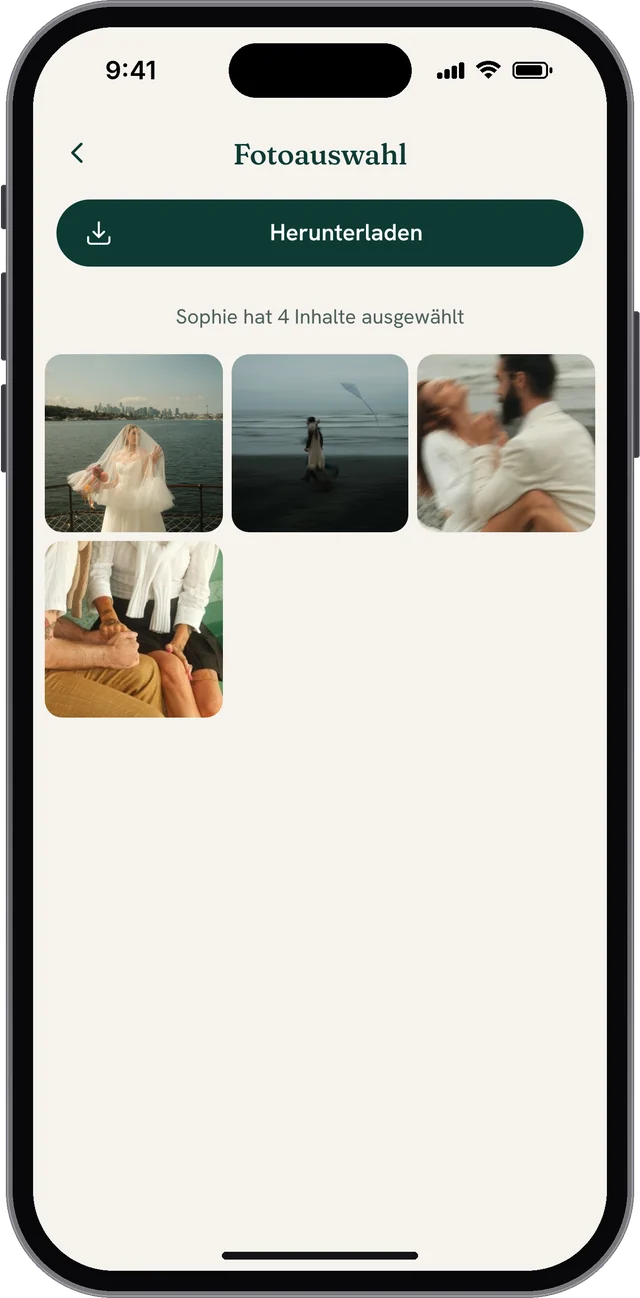
As the album owner, you can see which photos a guest has marked with a heart: tap the heart next to the guest in the guest list. You can also download this selection as a ZIP file:
Allow downloads
By default, guests may also download other guests’ photos in full resolution.
This setting switches downloading off.
Of course, it doesn’t prevent screenshots 😉.
Allow deleting
By default, every guest can also delete the photos they have uploaded.
This setting switches that off. As the album owner, you can delete photos at any time.